Integrating SonarQube MCP with Copilot in Android Studio
MCP Config
Visit official SonarQube MCP Server configuration generator and create your configuration.
My config is:
{
  "mcpServers": {
    "sonarqube": {
      "command": "docker",
      "args": [
        "run",
        "--init",
        "--pull=always",
        "-i",
        "--rm",
        "-e",
        "SONARQUBE_TOKEN",
        "-e",
        "SONARQUBE_URL",
        "-e",
        "SONARQUBE_READ_ONLY",
        "-e",
        "SONARQUBE_TOOLSETS",
        "-e",
        "SONARQUBE_PROJECT_KEY",
        "sonarsource/sonarqube-mcp"
      ],
      "env": {
        "SONARQUBE_TOKEN": "<YourSonarQubeUserToken>",
        "SONARQUBE_URL": "<YourSonarQubeServerURL>",
        "SONARQUBE_READ_ONLY": "true",
        "SONARQUBE_TOOLSETS": "analysis,issues,security-hotspots,quality-gates,rules,duplications,measures,dependency-risks",
        "SONARQUBE_PROJECT_KEY": "project-key"
      },
      "type": "local",
      "tools": [
        "*"
      ]
    }
  }
}
I've made it read-only to prevent the agent from changing anything at SonarQube. It's up to you.
Your project key is the one in SonarQube page url of your project: sonarqube-server-url/dashboard?id=project-key
User Token
Get your user token from your SonarQube profile under Security section. Select User Token as type.
The other types may not have authority to use toolsets like Duplications. Replace the token with
Colima and Docker Installation
To be able to run the server we need colima and docker. Colima provides a Linux virtual machine and Docker is container.
To install with brew
brew install colima docker
Then start
colima start
To stop later
colima stop
Integration with Copilot Plugin in Android Studio IDE
I assume that the Copilot plugin is already installed in Android Studio IDE. Open your chat and there is a settings/filter like icon next to the model settings below text field. Then, click on + Add More Tools.... Paste the config into servers json property like this:
{
    "servers": {
        "sonarqube": {
            "command": "docker",
            "args": [
                "run",
                "--init",
                "--pull=always",
                "-i",
                "--rm",
                "-e",
                "SONARQUBE_TOKEN",
                "-e",
                "SONARQUBE_URL",
                "-e",
                "SONARQUBE_READ_ONLY",
                "-e",
                "SONARQUBE_TOOLSETS",
                "-e",
                "SONARQUBE_PROJECT_KEY",
                "sonarsource/sonarqube-mcp"
            ],
            "env": {
                "SONARQUBE_TOKEN": "<YourSonarQubeUserToken>",
                "SONARQUBE_URL": "<YourSonarQubeServerURL>",
                "SONARQUBE_READ_ONLY": "true",
                "SONARQUBE_TOOLSETS": "analysis,issues,security-hotspots,quality-gates,rules,duplications,measures,dependency-risks",
                "SONARQUBE_PROJECT_KEY": "project-key"
            },
            "type": "local",
            "tools": [
                "*"
            ]
        }
    }
}
If colima is already started, click on settings/filter like icon next to the model settings below text field in Copilot chat, again. If SonarQube MCP isn't started already, check the box and start it.
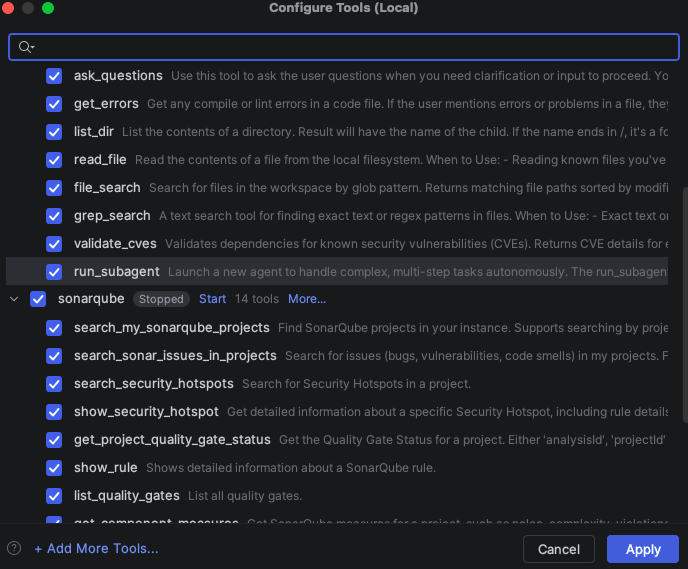
Then you can try asking questions about Sonar issues to Copilot.
Working on Pull Request Sonar Analysis
For example, if you have a pipeline that checks Sonar issues on a pr diff and you want the Copilot look for only those issues, we can add a skill:
Create a SKILL.md file under your root project folder .github/skills/fix-sonar/SKILL.md
You can use these instructions or change it according to your needs:
---
name: fix-sonar
description: Retrieve and fix SonarQube issues and code duplications for the pull request associated with the current Git branch.
---

# SonarQube Instructions

When retrieving or fixing SonarQube findings:

- Identify the currently checked-out Git branch.
- Use `list_pull_requests` to identify the corresponding pull request.
- If no matching pull request is found, stop and inform the user.
- If multiple pull requests match, ask the user to select one.
- Always pass the pull request ID when calling `search_sonar_issues_in_projects`.
- Retrieve code duplications using the corresponding SonarQube MCP tools, scoped to the identified pull request.
- Never fall back to project-wide or main branch analysis.
- If PR filtering is unsupported, stop and inform the user.
- Retrieve all pages of results when pagination is required.
- Inspect the corresponding SonarQube rule before fixing an issue.
- Preserve existing business logic and architectural patterns when fixing issues.
- Avoid unrelated changes and unnecessary refactoring.
- Do not suppress SonarQube rules.
- Run relevant tests after fixing issues.
- Report any findings that could not be fixed and explain why.
- Do not commit or push changes automatically.